LED Screen Rental: How to Connect Your Content Fast
Your event is two hours away. The LED wall is up, the cables are running, and someone just asked the question nobody prepared for: how do we actually get our content onto this thing? If you have rented an LED screen rental before and hit this wall, you are not alone. Getting the connection right is what separates a sharp visual experience from a blurry, flickering embarrassment. Here is exactly how it works.
Table of Contents:
Understanding How Content Reaches an LED Screen Rental
An LED wall is not a plug-and-play monitor. It works through a signal chain, and each link in that chain needs to be correct. Miss one step and nothing displays. Get it right and you have a massive, high-brightness canvas that works in full daylight or under a dim venue ceiling.
The Signal Chain: What You Need to Know
The typical path from your laptop or media player to the LED display looks like this: your source device sends a signal through an HDMI or DVI cable to a video processor, which then translates and distributes that signal to the LED cabinets through a sending card. Each cabinet daisy-chains to the next.
Video Processors and Sending Cards
The video processor is the brain of the LED screen rental setup. It handles scaling, resolution mapping, and signal routing. Sensors, fitted inside the processor or controller unit, communicate directly with the LED panels. Without the right sending card configuration, the display either goes blank or shows scrambled output. Most professional rental setups come with these pre-configured, but you should always confirm this with your rental provider before the day.
Resolution Matching Is Where Most Problems Start
Every LED wall has a native resolution based on its physical pixel count. If your laptop sends a 1920×1080 signal and the screen is built at a non-standard resolution like 1280×960, the processor will scale it. That scaling can cause blurring or cropping if not set up correctly. Ask your rental company for the screen’s native resolution in advance, then set your laptop’s display output to match exactly.
Indoor vs Outdoor LED Rental Connections
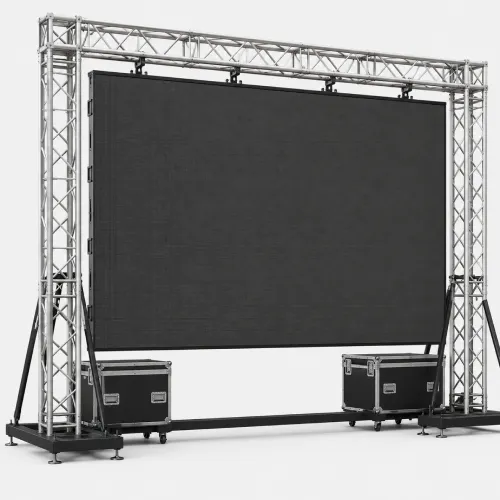
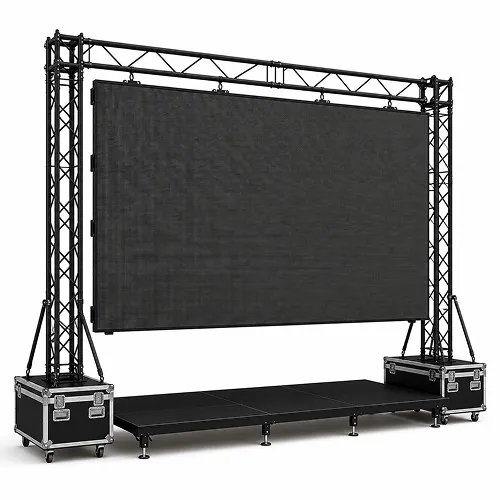
Indoor LED screens, like the type Sign Express Advertising Systems Tech LLC supplies for events and presentations, typically use wireless connection technology between cabinets, which cuts down on visible cabling and saves setup time. Outdoor screens have weatherproof input ports but follow the same signal chain logic. The key difference is brightness: outdoor panels run at much higher nit levels to stay visible under direct sun, so your content’s colour calibration needs to account for that.
Content Format Requirements
Not all video formats render the same way on an LED wall. Use MP4 or MOV with H.264 encoding at the highest bitrate your media player supports. Avoid low-resolution graphics stretched to fill the wall. Static images should be exported at the screen’s native resolution. If you are running live feeds, confirm that your HDMI output supports the required frame rate, typically 60Hz, to avoid judder on moving content.
Backup Connections and Redundancy
Professional setups include a port backup function so that if the primary signal path fails, the system switches to a secondary input without the screen going dark. When you book an LED screen rental, ask specifically whether the package includes signal redundancy. For high-stakes events, this is not optional. Signex’s indoor LED displays come with wireless connection and port backup built in, removing the need for cabinet-to-cabinet cabling entirely.
Final Thoughts
Connecting content to a rented LED wall is manageable when you understand the signal chain, match your resolution, and confirm redundancy options before the event day. The biggest issues come from last-minute surprises, so have these conversations with your rental provider upfront. What does your next event need on screen, and have you confirmed the technical specs with your rental team yet?
FAQ
Usually HDMI goes from your laptop to the video processor. The processor handles everything from there. Bring an HDMI cable with your laptop’s adapter just in case, but most rental setups have this covered.
Yes. A dedicated media player, like a USB-based or SD card player, connects directly to the processor. Set your loop before the event, and it runs without anyone managing a laptop.
Ask the rental company for the wall’s native pixel count and build your graphics at exactly that size. Do not assume it is standard HD. LED walls vary, and building to the wrong resolution costs you sharpness.
A properly set up LED screen rental includes signal redundancy, meaning a backup path kicks in automatically. Always confirm this before your event. If redundancy is not offered, consider whether the stakes justify asking for it.
Absolutely. Run the camera output into the video processor alongside your other sources, and it displays live. Confirm with your rental provider that the processor supports multiple inputs and switching.